
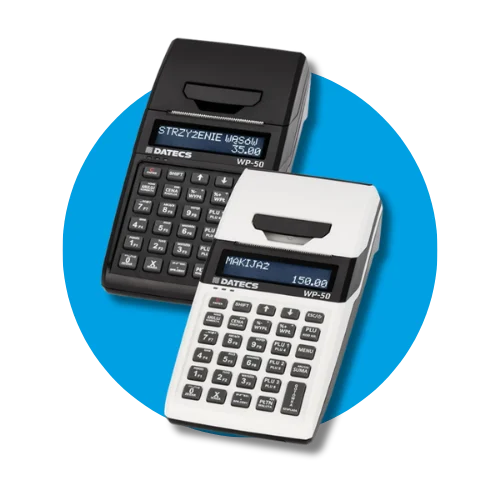
A technical inspection of the cash register is performed at least once every 2 years. Failure to complete the inspection on time may result in penalties and the requirement to return the purchase tax relief. The deadline is counted from fiscalisation or from the last inspection recorded in the service book. The inspection is performed by an authorised service centre – call us or leave your phone number, and we will call you back to schedule the inspection.
Mandatory technical inspection
Mandatory technical inspection
A technical inspection is required every 2 years. Leave your number and we will call you back.
Turning the register on and off
Turn on the cash register by pressing the [ESC/O] button (the register starts up in approx. 25s).
Turning off the register: press the [ESC/O] key to display the MAIN MENU, use the [⬆] [⬇] keys to select 10) Turn off register and confirm with the [GOTÓWKA] button
Registering sales
After turning on, in the MAIN MENU select option 1) Sales and press the [GOTÓWKA] key
When 0.00 appears on the display, the register is ready to work.
Select a service, e.g.: 1 – Passenger transport
Press the [PLU] key, enter the product price, and confirm with the [GOTÓWKA] key
Finalise the receipt with the [GOTÓWKA] key for CASH payments, or for TRANSFER/CARD payments press [PŁTN], use the [⬆] [⬇] keys to select the payment method, and confirm with the [GOTÓWKA] key
Once printed, a receipt can only be cancelled through accounting procedures.
Compatible thermal paper rolls
Paper matched to this device – shipped within 24 h.
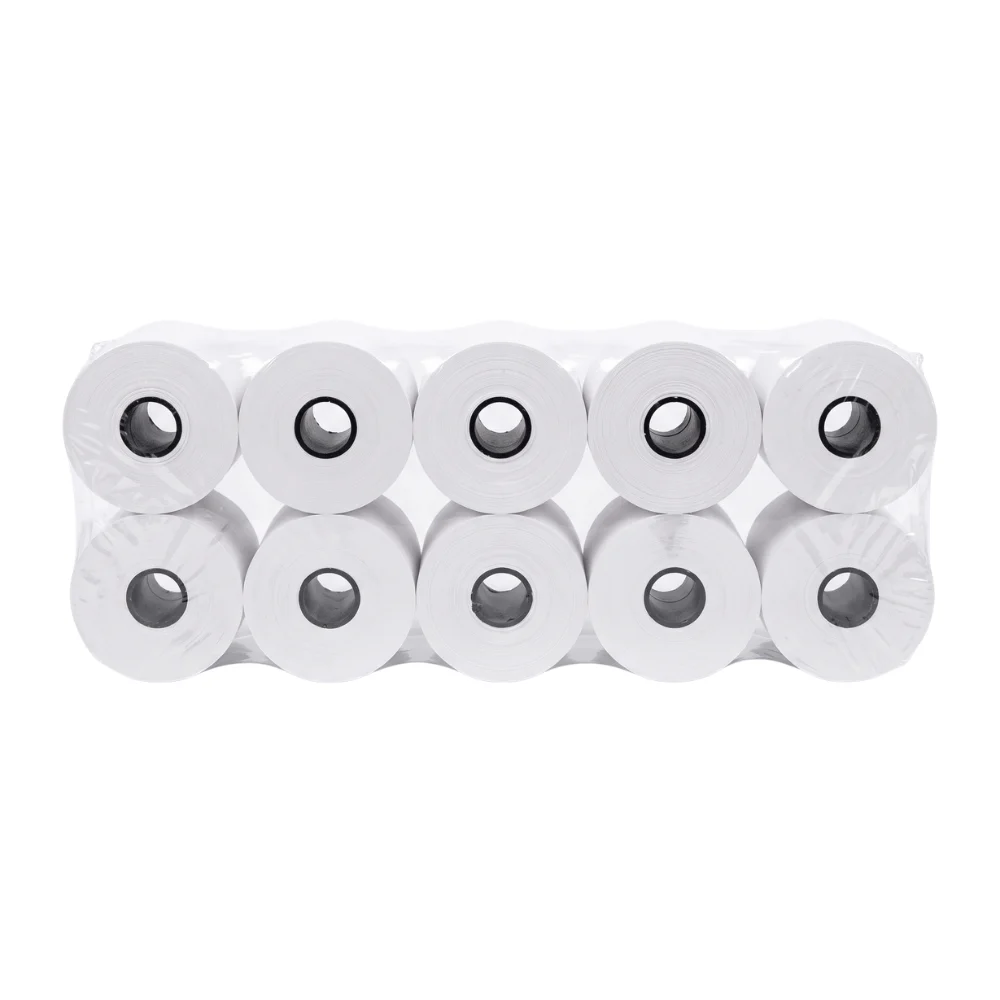
Compatible thermal paper rolls
Rolki termiczne 57 mm / 30 m – 10 szt.
21,14 zł net · 26 zł
Cancelling a receipt (before printing)
Press the [SHIFT] key, then the [ANULUJ] key; the CANCELLATION MENU will appear, confirm with the [GOTÓWKA] key. The receipt will be cancelled.
Daily fiscal report
After turning on, in the MAIN MENU select option 1) Sales and press the [GOTÓWKA] key
When 0.00 appears on the display, the register will be ready to generate the report.
Press the [SHIFT] key and then the [1] key.
Next, when prompted whether to print the Daily Report, press the [0] key and then the [GOTÓWKA] key.
The daily report will print and the "wait" message will appear.
Then wait a moment until the register displays a successful synchronization message and prints the confirmation.
Monthly periodic report
After turning on, in the MAIN MENU select option 1) Sales and press the [GOTÓWKA] key
When 0.00 appears on the display, the register will be ready to generate the report.
Press the [SHIFT] key and then the [2] key.
"1) Full" will appear, confirm with the [GOTÓWKA] key.
Enter the month and year from the keypad MM-YYYY and confirm with the [GOTÓWKA] key.
The monthly report will print.
A monthly report can only be generated for a month that has ended, so for July, for example, generate the report on August 1st at the earliest.
Free downloadable forms
Download ready-to-print forms and use them when needed.
Connecting Datecs WP-50 to Wi-Fi
Press the [ESC/O] key to display MAIN MENU, use the [⬆] [⬇] keys to select 4) PROGRAMMING and confirm with the [GOTÓWKA] button
19) CONFIGURATION and confirm with the [GOTÓWKA] button
Next, select 6) COMMUNICATION and confirm with the [GOTÓWKA] button
Next, 5) WIFI and confirm with the [GOTÓWKA] button
Next, 1) SEARCH WIFI and confirm with the [GOTÓWKA] button
Select the name of your network from the list
Enter the password and accept with the [GOTÓWKA] key
Fiscal memory readout
After you stop using the cash register (e.g. due to closing down your business) – submit the device for a fiscal memory readout at an authorised ESC SA service centre.
Fiscal memory readout is a legally regulated procedure aimed at summarising all fiscal operations and formally deregistering the cash register from tax office records. Learn more on the ESC SA blog: Cash register readout – what does it involve and how much does it cost?