
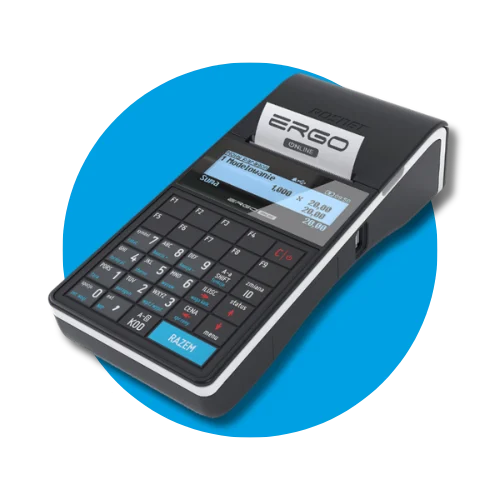
A technical inspection of the fiscal cash register must be carried out at least every 2 years. Missing the inspection deadline risks a fine and the requirement to return any tax relief received for purchasing the cash register. The deadline is counted from fiscalization or from the last inspection recorded in the service book. The inspection is performed by an authorized service center – call us or leave your phone number, and we will call back to schedule it.
Mandatory technical inspection
Order an inspection
A technical inspection is required every 2 years. Leave your number and we will call you back.
Turning the cash register on and off
The Posnet Ergo Online cash register runs on battery or power adapter. Before first use, connect the power adapter and fully charge the device.
Connect the power adapter to the port on the rear of the casing.
Press the [C/0] button to turn the cash register on or off. The cash register starts up in approx. 25 seconds.
Tip: leave the online cash register plugged into power at the end of the day – this makes it easier to connect to the Ministry of Finance server and fully recharge the battery.
Replacing the paper roll
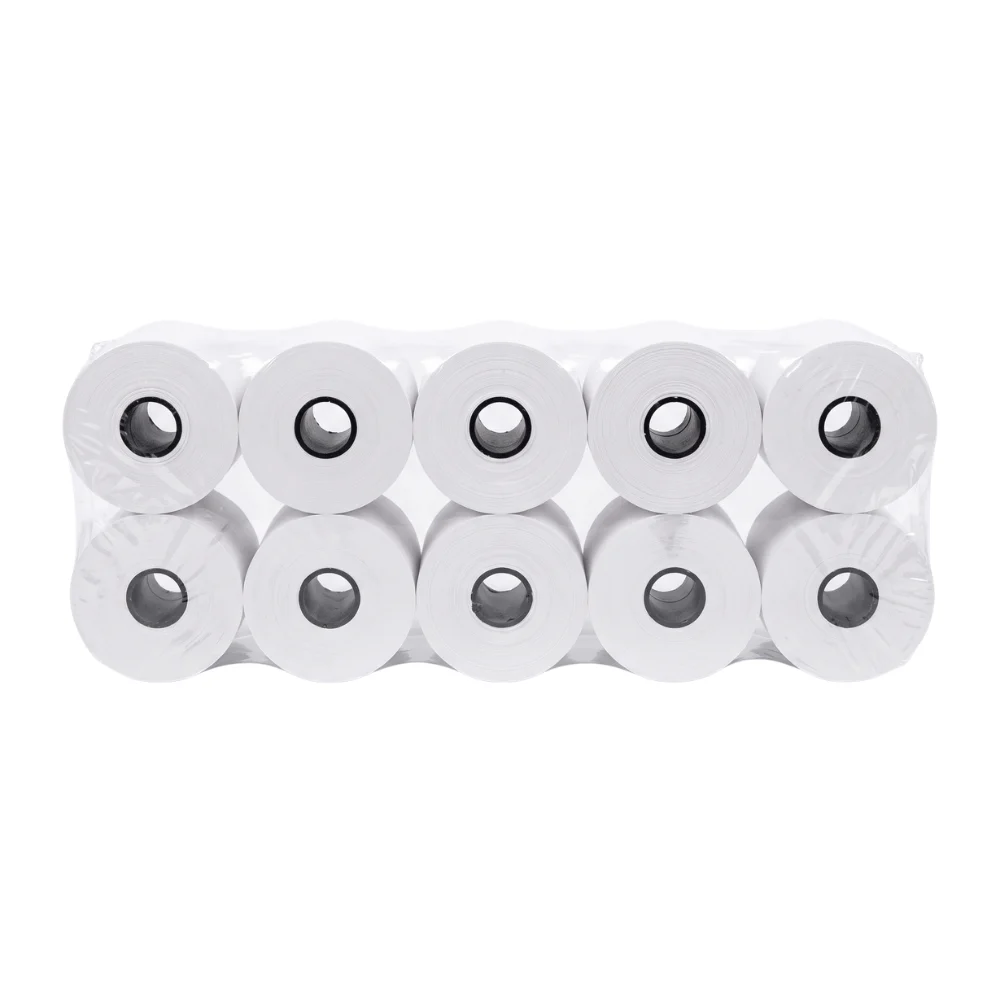
Ergo uses a 57 mm wide thermal roll up to 30 meters long. Paper is loaded using the drop-and-print method.
- Open the printer mechanism cover.
- Insert the roll so that the paper unwinds from underneath, with the end sticking out past the casing.
- Close the cover and tear off excess paper against the tear bar.
If the printout is blank – the roll is inserted upside down. Thermal paper can only be printed on one side.
Compatible thermal rolls
Paper matched to this device – shipped within 24 h.
Compatible thermal rolls
Rolki termiczne 57 mm / 30 m – 10 szt.
21,14 zł net · 26 zł
Issuing a receipt step by step
Make sure the screen displays the message "NEW RECEIPT".
Enter the item or service reference number (e.g.
1for "Painting",2for "Plastering") and press the [KOD] key.When the [CENA] field appears on the display, enter the correct amount and confirm with the [RAZEM] key.
To add more items (e.g.
3– "Drywall"), repeat the steps above.After entering all items, press the [RAZEM] key to proceed to the subtotal (the screen will display "SUBTOTAL").
Finalize the receipt depending on the payment method:
Cash: press [RAZEM].
Bank transfer: press [F1].
Important: A printed receipt can only be canceled through proper accounting records (returns/mistakes procedure).
Check out our blog: Error on a fiscal receipt – guide on how to cancel and correct a sale
Canceling a receipt (before printing)
Canceling directly on the cash register is only possible before the document is printed.
Hold down the [C] key.
When the screen displays the message "Cancel receipt", confirm the operation with the [RAZEM] key.
Free downloadable forms
Download ready-to-print forms and use them when needed.
Daily fiscal report
A daily report is performed at the end of every day sales were made.
Perform the daily report at the end of each day on which sales took place.
Press the [F9] key.
The cash register will prompt for date verification – confirm it is correct with the [RAZEM] key.
Periodic report (monthly)
A monthly report is a summary of sales for a full month. Generate it only for a full, completed month (e.g., the July report can be run on August 1 at the earliest).
Press the [F8] key.
Enter the month and year using the keyboard in MM-YYYY format and confirm with the [RAZEM] key.
Select the report type: "Full" or "Summary" (the summary option is usually sufficient) and confirm with the [RAZEM] key.
You can only print the report after the end of the given month.
Fiscal memory readout
In the event of permanent cessation of cash register use (e.g. due to business liquidation), the device must be submitted for a Fiscal Memory readout.
We also recommend for this device
Posnet
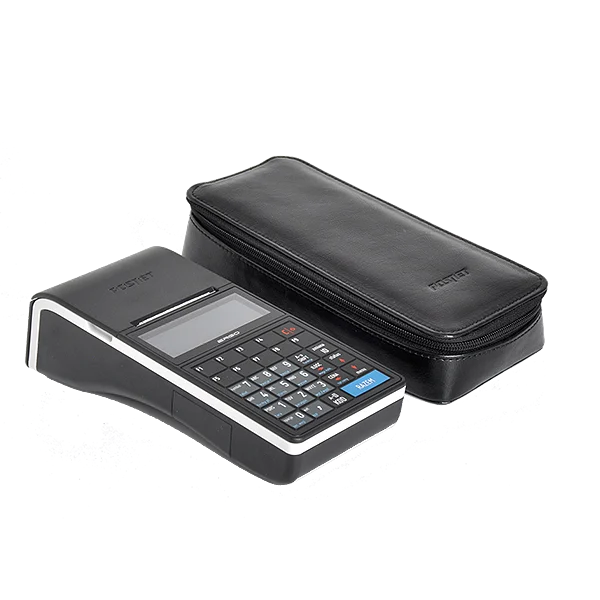
Etui na kasę fiskalną Posnet Ergo Online
129 zł net
Posnet
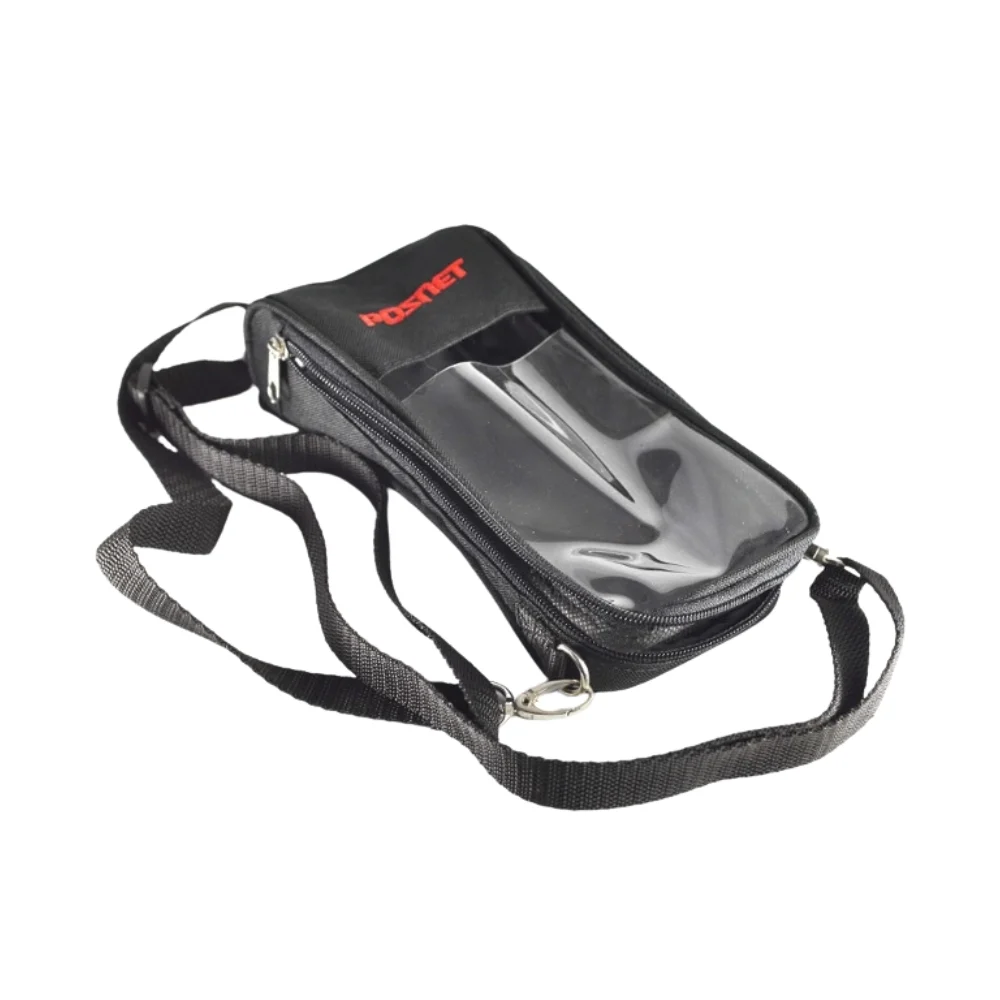
Pokrowiec na kasę fiskalną Posnet Ergo Online
100 zł net
Fiskasy.pl
Rolki termiczne 57 mm / 30 m – 10 szt.
21,14 zł net