
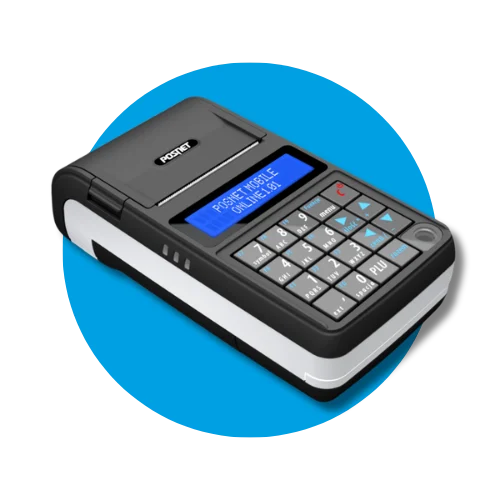
A technical inspection of the cash register must be carried out at least every 2 years. Missing the inspection deadline may result in penalties and the requirement to return the tax relief received for purchasing the register. The deadline is calculated from fiscalization or from the last inspection recorded in the service book. The inspection must be performed by an authorized service center – call us or leave your phone number, and we will call you back to schedule it.
Mandatory technical inspection
Mandatory technical inspection
A technical inspection is required every 2 years. Leave your number and we will call you back.
Registering a sale
Make sure the screen displays the message "NOWY PARAGON" (NEW RECEIPT).
Enter the item or service number (e.g.
1for "Painting",2for "Plastering") and press the [PLU] key.When the [CENA] (PRICE) field appears on the display, enter the correct amount and confirm with the [RAZEM] (TOTAL) key.
To add more items (e.g. 3 – "Drywall"), repeat the steps above.
Once all items are entered, press the [RAZEM] key to proceed to the summary (the screen will display „PODSUMA PARAGONU”).
Finalizing the receipt depending on the payment method:
Cash: press [RAZEM].
Bank transfer: press [Funkcje+1].
Important: A printed receipt can only be cancelled through appropriate accounting records (returns/errors procedure).
Check out our blog: Error on a fiscal receipt – guide on how to cancel and correct sales
Cancelling a receipt (before printing)
Cancelling directly on the cash register is only possible before the document is printed.
Press and hold the [C] key.
When the message „Anulować paragon” (Cancel receipt) appears on the screen, confirm the operation with the [RAZEM] key.
Free printable forms to download
Download ready-to-print forms and use them when needed.
Daily fiscal report
A daily report is generated at the end of every day on which sales were made.
Press the Funkcje+9 key – the cash register will ask if the date is correct, confirm with the [RAZEM] key.
Monthly periodic report
A monthly report is a sales summary for a full month. Generate it only for a completed, closed month (e.g. the report for July can be printed on August 1 at the earliest).
Press the Funkcje+8 key.
Enter the month and year using the keyboard in the MM-YYYY format and confirm with the [RAZEM] key.
Select the report type: „Pełny” (Full) or „Podsumowanie” (Summary – usually the summary option is sufficient) and confirm with the [RAZEM] key.
You can print the report only after the given month has ended.
Fiscal memory readout
After you stop using the cash register (for example, due to business liquidation) – submit the device for a fiscal memory readout at an authorized ESC SA service center.
Reading the fiscal memory of a cash register is a legally regulated procedure aimed at summarizing all fiscal operations and formally deregistering the register from the tax office. Read more on the ESC SA blog: Cash register readout – what does it involve and how much does it cost?